Free Voiceover No Copyright
Do you want to make faceless Facebook, YouTube or TikTok videos but don’t want to record your own voice? You don’t need expensive tools like ElevenLabs.
Microsoft has a free hidden tool called Clipchamp that generates 100% realistic, copyright-free voiceovers. In this guide, we will use the specific settings to make the AI sound exactly like a human.
How to Generate Realistic AI Voice for Free (Clipchamp)
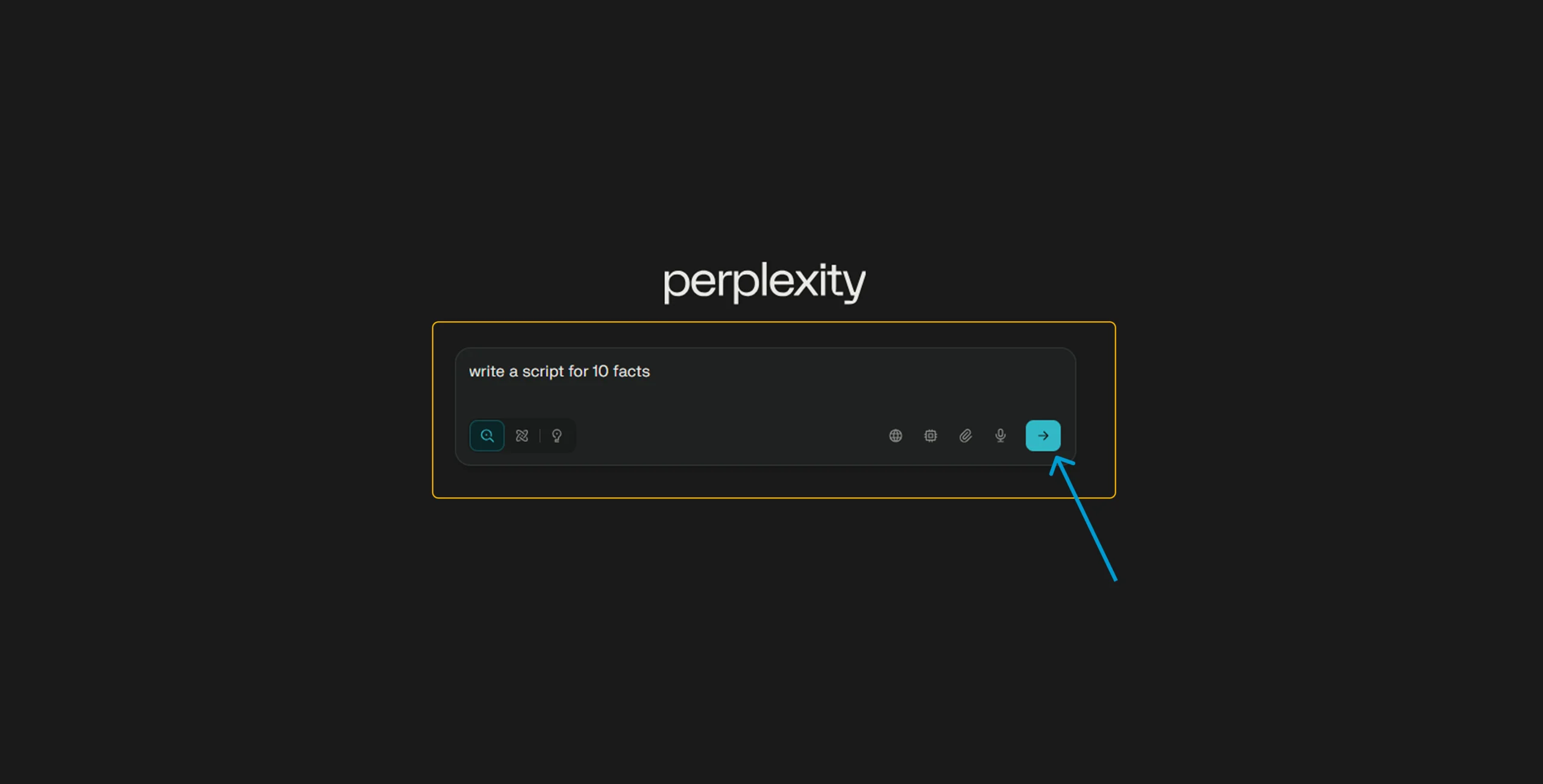
Step 1: Prepare Your Script Before opening the software, write your full script in Perplexity or Chatgpt.
Tip: Keep your sentences short. Long sentences can make the AI sound breathless or robotic.
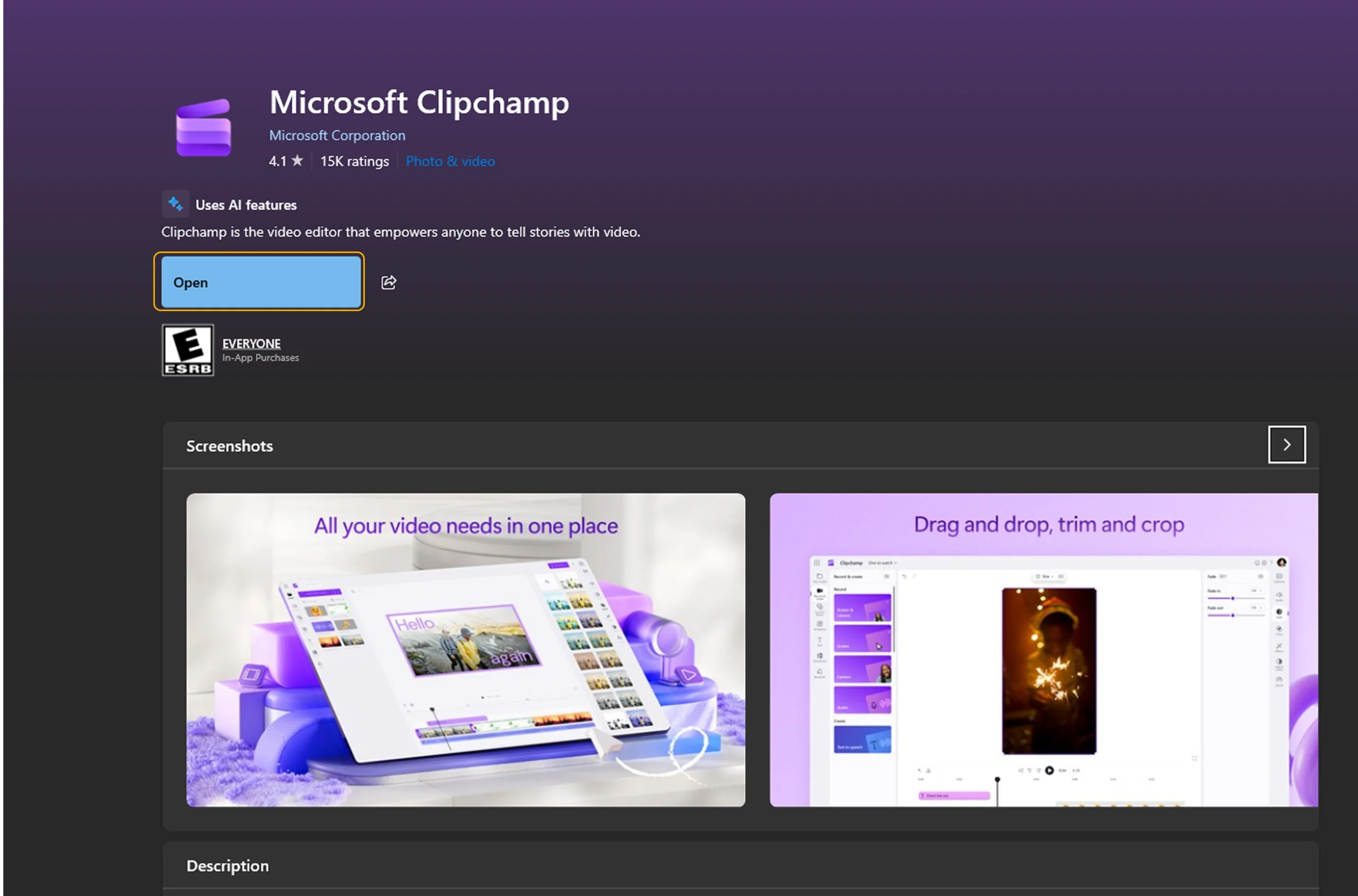
Step 2: Open Microsoft Clipchamp If you are using Windows 10 or 11, search for “Clipchamp” in your start menu. It is usually pre-installed.
If you don’t have it, download it from the Microsoft Store (It is free).
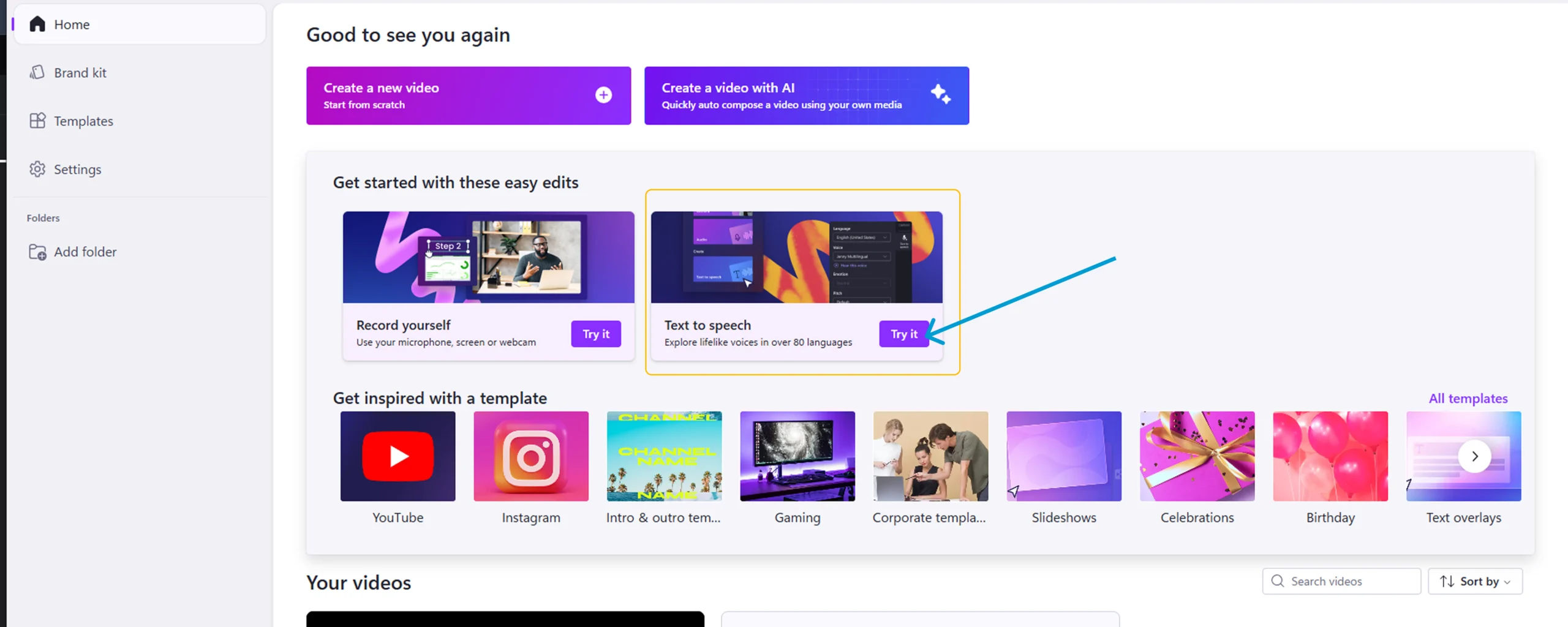
Open the app and click on the “Create a new video” button.
Step 2: Open Microsoft Clipchamp If you are using Windows 10 or 11, search for “Clipchamp” in your start menu. It is usually pre-installed.
If you don’t have it, download it from the Microsoft Store (It is free).
Open the app and click on the “Create a new video” button.
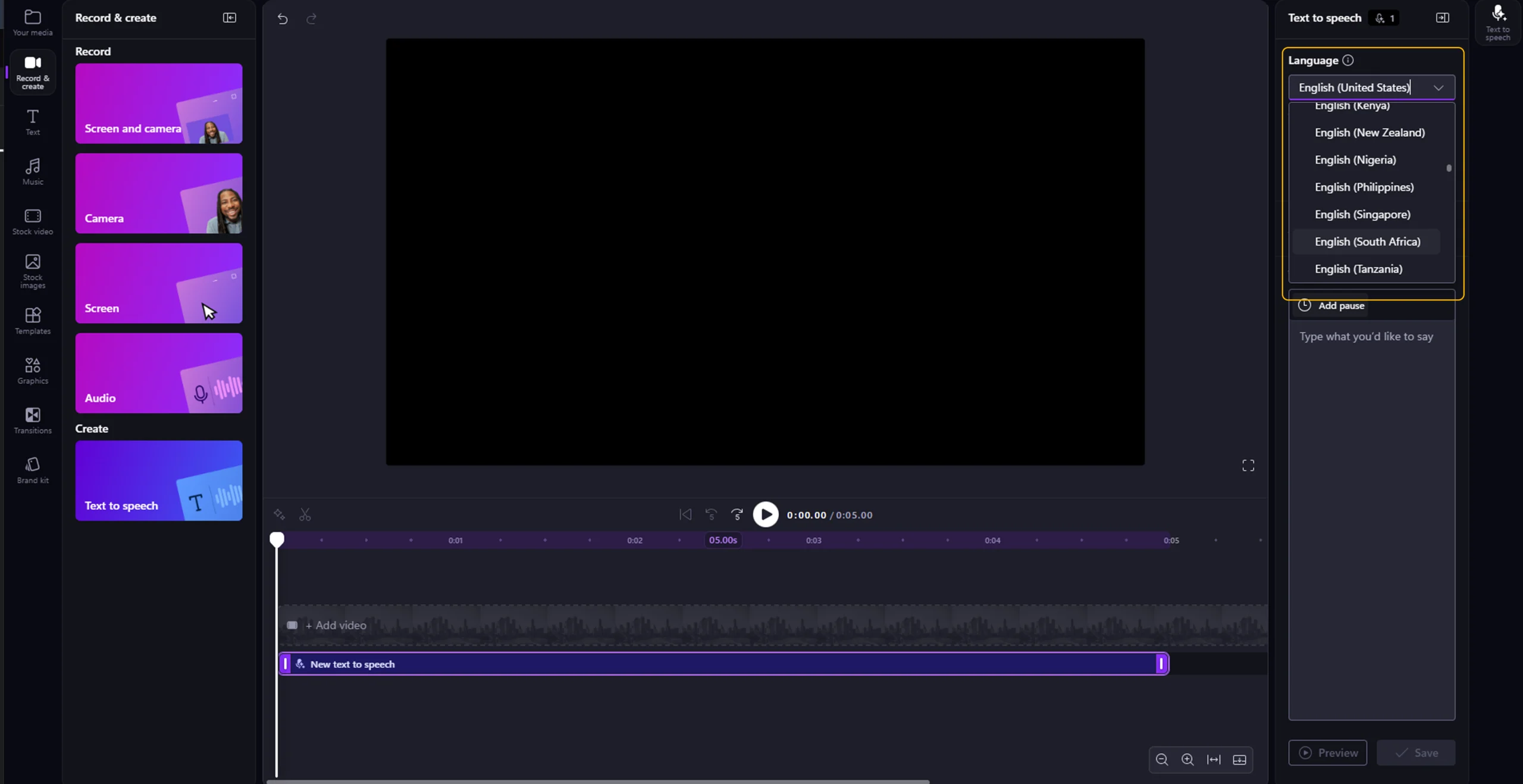
Step 3: Open the Text to Speech Tool You will see a video editing timeline. Look at the Left Sidebar.
Click on the “Record & create” tab.
Select the “Text to speech” option at the bottom.
This will open the advanced voice control panel on the right side.
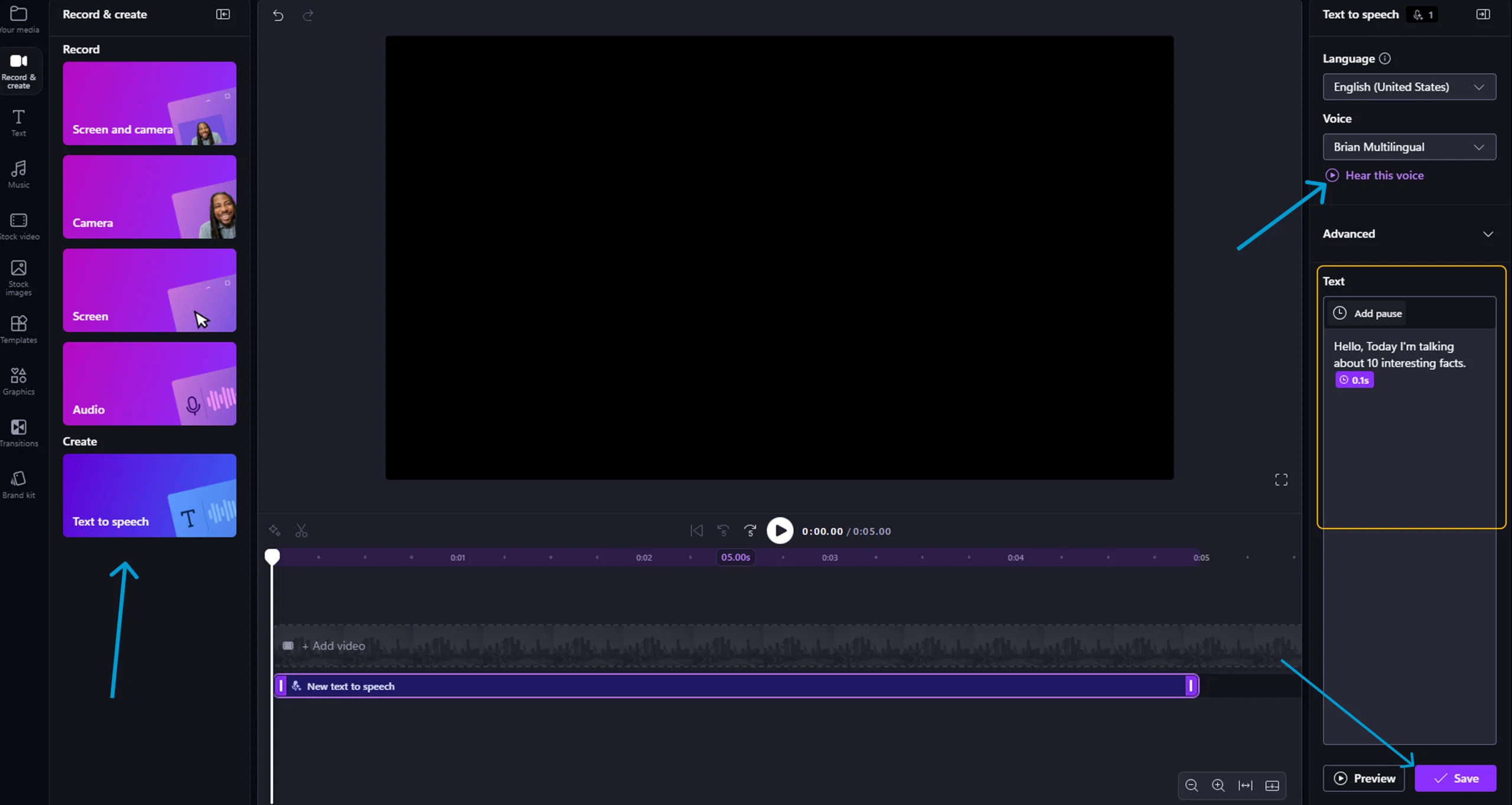
Step 4: Select the Best “Human” Voices Clipchamp has 100+ voices, but most of them sound fake. For the best result, use these specific settings:
Language: Select English (United States).
Voice: Select “Brian” or “Roger”. (These are the most famous storytelling voices).
Alternative: Change language to English (Canada) and select “Liam”.
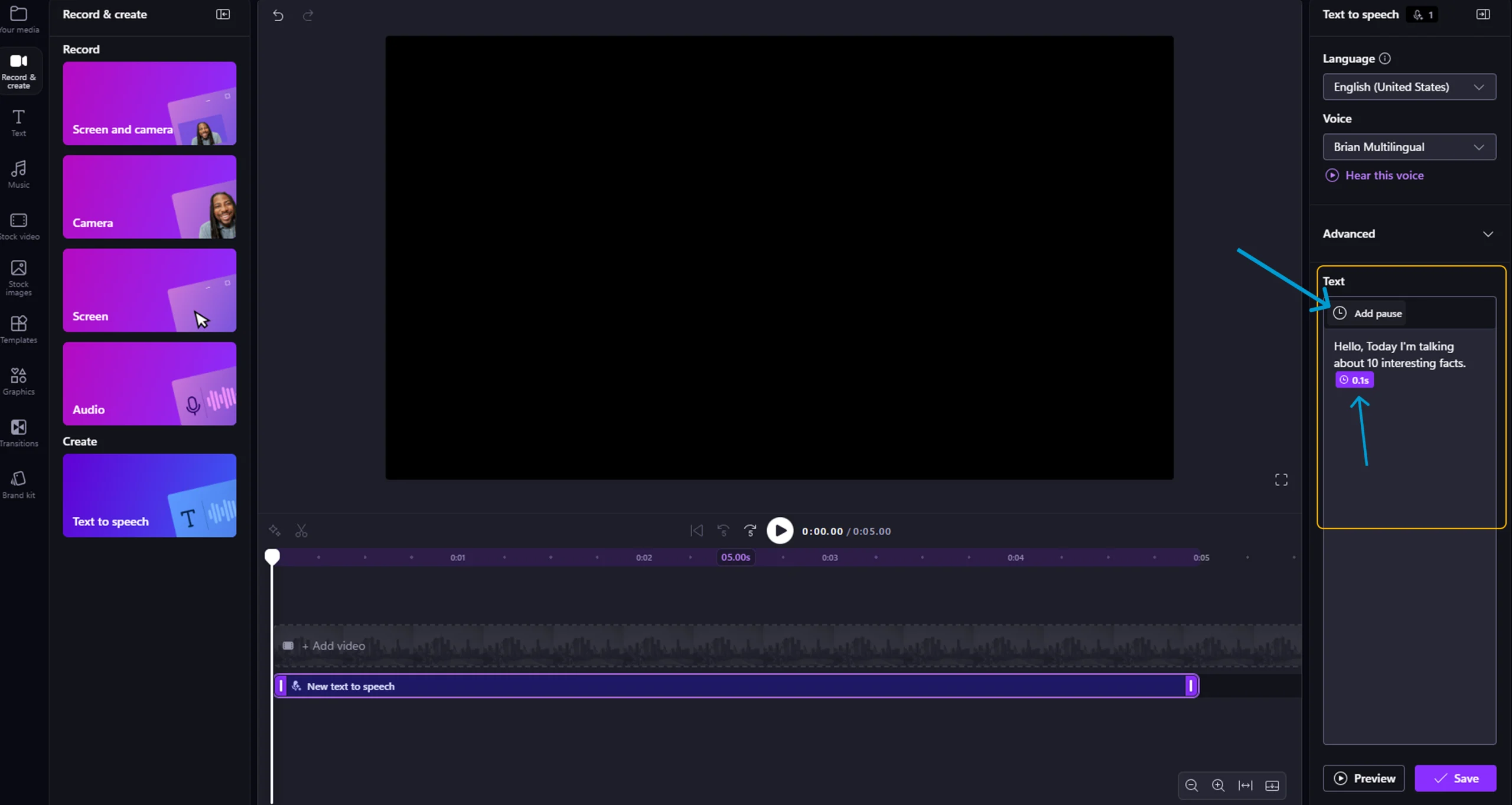
Step 5: The “1-Second Gap” Trick (Important) If you paste a big paragraph, the AI will read it too fast. To fix this:
Paste your script line by line.
Add a Period (.) or Comma (,) after every sentence.
Pro Tip: Leave a small gap between sentences in the preview timeline. This makes it sound like the person is taking a breath.
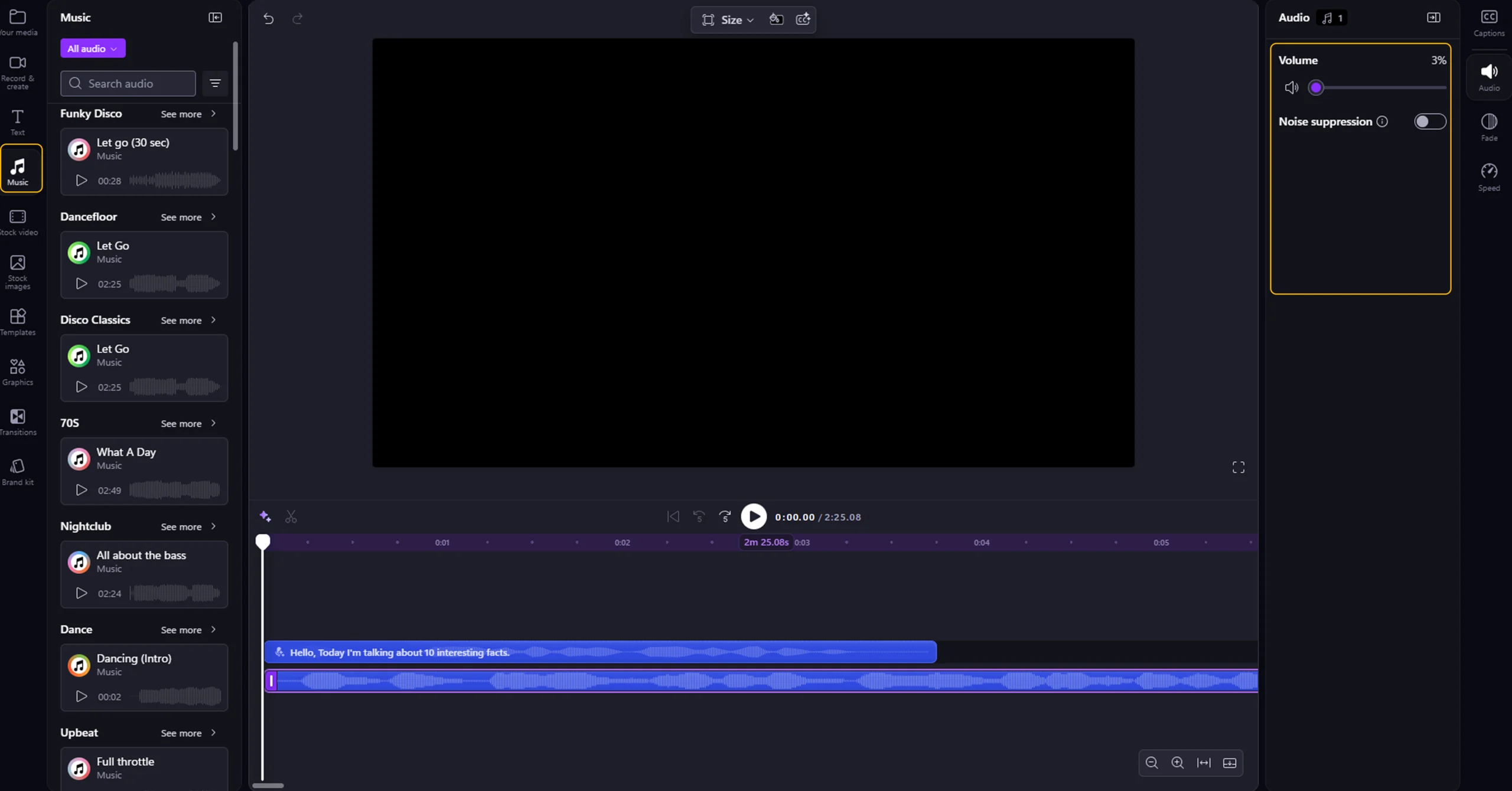
Step 6: Sync Background Music Click the “Save” button to add the audio to your timeline. Now, drag and drop your background music file.
Volume Hack for Professional Audio:
Click on your Voice Track. Ensure volume is at 100%.
Click on your Music Track. Lower the volume to 3% or 5%.
Why? If the music is louder than 5%, it will disturb the listener.
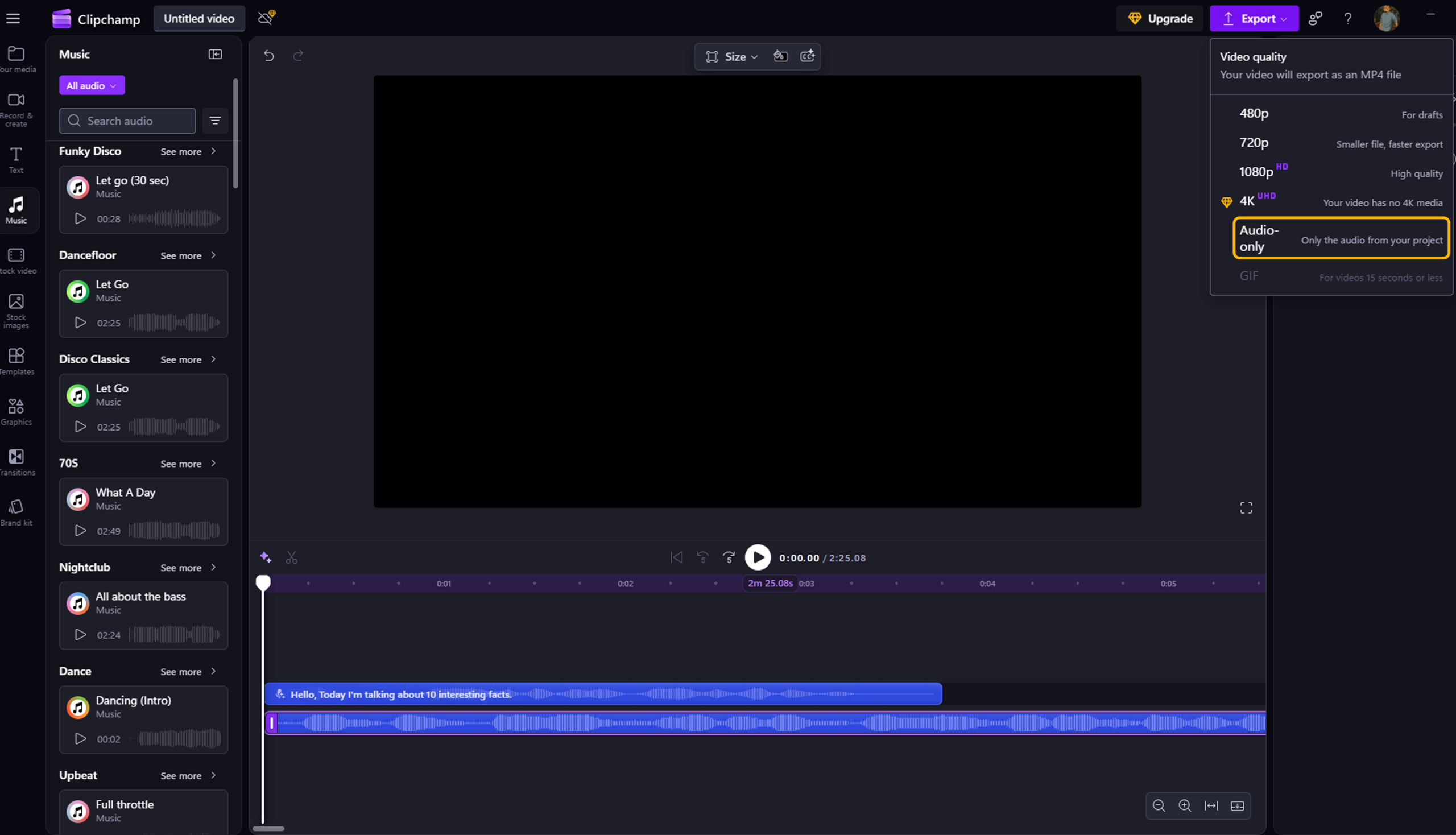
Step 7: Export the Audio Clipchamp exports video files (MP4), but we only need audio.
Click the Export button at the top right.
Select Audio mp3 (Rendering will be fast).
Save the file.
Later, just drag the video into your editor and hide the video track.
The Secret Sauce: Why These 3 Voices Are Best?
Most people fail because they pick the default robotic voice. To make your video go viral, you need “Character.” Here is the breakdown of the Top 3 Hidden Gems in Clipchamp:
1. English (United States) – “Brian”
2. English (Canada) – “Liam”
3. English (United States) – “Roger”
You can have 4K visuals, but if your audio sounds like a robot from 1990, people will scroll away in 3 seconds.
The Hack: Don’t just export. Add background music at 3% volume. This tiny layer of noise hides the “micro-robotic” cuts and makes the voice sound 100% human.